Focal Point's Calendar tab shows your upcoming events alongside your tasks and trip reservations — one timeline. You can create events directly in the app, or sync from your Google Calendar so the events you live by are visible without leaving Focal Point.
What's on the Calendar
- Events you create in Focal Point — one-off or recurring meetings, doctor appointments, family commitments. Optionally linked to a project for context.
- Google Calendar events, if you've connected your Google account in Settings → Integrations. These appear with a Google badge so you can tell them apart from native events.
- Trip reservations — flights, hotels, and other booked items from any Trip projects you have. See Trips.
- Tasks with due dates — surfaced as date pins on the day they're due, so you can see deadlines at a glance.
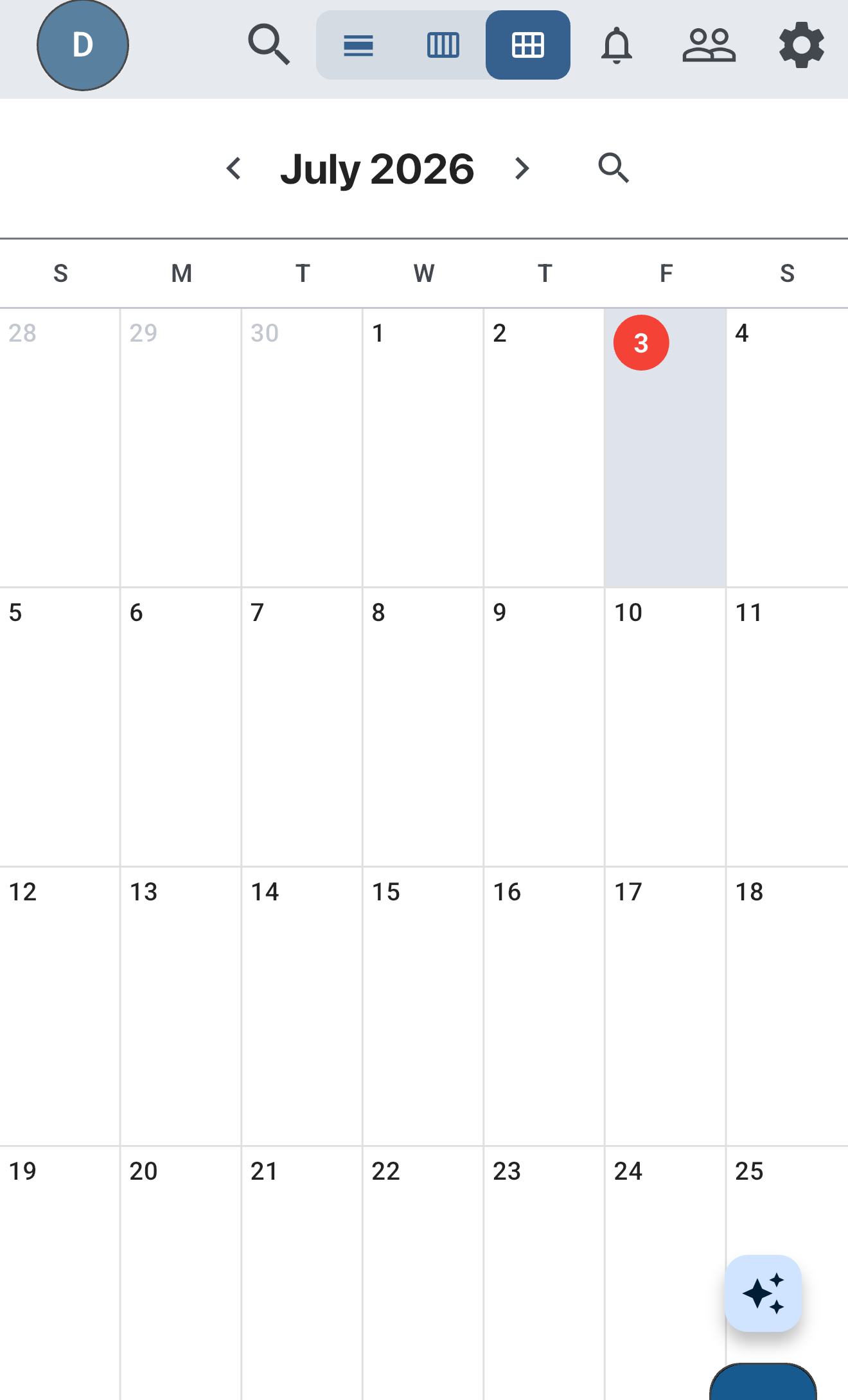
Use the Day / Week / Month toggle at the top to switch views. Month view gives you the whole month at a glance, with today highlighted; tap any day to jump to its schedule.
Creating an event
- From the Calendar tab, tap + New Event.
- Enter a title, start time, end time, and optional location, description, attendees, and reminder.
- Optionally pick a project to attach the event to — collaborators on that project will see it on their calendar too.
Events without a project are personal — only you see them. Events attached to a project follow the project's sharing.
All-day events
Tick the All day toggle when creating or editing an event. All-day events span the date(s) you select, no specific start/end time. Multi-day all-day events (e.g., a vacation block from July 1 to July 5) are valid and render as a continuous bar across those days.
Recurring events
Set a recurrence rule (daily / weekly / monthly / custom) when creating an event. Each instance appears separately on the calendar but shares the parent event's content. Editing an instance prompts: "Just this one, or all future occurrences?"
Recurring events synced from Google Calendar follow the same model — one entry per occurrence in the displayed window. If you change a Google event, the change shows up on the next sync.
Connecting Google Calendar
- Open Settings → Integrations → Google Calendar.
- Tap Connect and complete the Google OAuth flow.
- Pick which calendars to sync (primary + any secondary calendars you want).
Initial sync usually completes in under a minute. Updates after that flow in within a few minutes of being made in Google Calendar.
If the connection goes stale
Google's OAuth tokens expire periodically (usually after long periods of inactivity or after Google-side security events). If we can't refresh the token automatically, you'll see a "Reconnect Google Calendar" banner at the top of the Calendar tab and on Settings.
Tap the banner, complete the OAuth flow again, and sync resumes. Events that came in before the disconnection stay; new events from Google won't appear until reconnection completes.
Time zones
Events display in your device's local timezone. A meeting created at 3 PM Denver shows as 3 PM Denver while you're there, and the local equivalent if you've travelled (e.g., 5 PM Eastern after you fly to New York). The underlying event time doesn't change; only the rendering does.
All-day events are an exception — they render the same calendar day in every timezone (Jul 1 is Jul 1 whether you're in Denver, Reykjavik, or Tokyo). This is intentional so vacation blocks and birthdays don't drift across day boundaries when you travel.
Linking events to projects
When creating or editing an event, pick a project from the project picker. The event then shows up in the project's Calendar / Activity views and on each collaborator's calendar tab. Useful for project-scoped meetings, sprint events, or trip-related appointments.
An event can only belong to one project at a time. Unlink by clearing the project picker (event becomes personal again) or re-pick a different project to move it.
Searching events
The global search bar covers events alongside tasks and notes. Results include the event's title, time, and project linkage so you can disambiguate. Scope by project via the filter pill below the search bar if needed.
Common gotchas
- The Calendar tab is read-then-write friendly with Google. Events you create in Focal Point don't push back to Google — this is one-way sync, Google → Focal Point. If you need the event in Google too, create it there instead.
- Reconnect banner appearing repeatedly usually means a Google security event (password change, 2FA setup, app password revocation). Complete the reconnect once after the change; if the banner returns, check Google Account → Security → Third-party apps to confirm Focal Point's access is still granted.
- Time zones for travel use your device's current timezone, not the trip destination. If you want to see "what time is my Reykjavik meeting in Reykjavik local," set the device to Reykjavik time on arrival.
- Recurring event edits can leave detached instances (a single occurrence edited separately from the series). If you mass-edit the series later, those detached instances don't pick up the new values until you delete and re-create them.
Was this helpful? Email support@milehighsoftwaresolutions.com with feedback, corrections, or questions we should add here.