Notes capture the long-form content that doesn't fit on a task: meeting notes, ideas, drafts, references. They live in the Notes tab, can be personal or attached to a project, and support comments + AI summaries.
Creating a note
- From the Notes tab, tap + New Note.
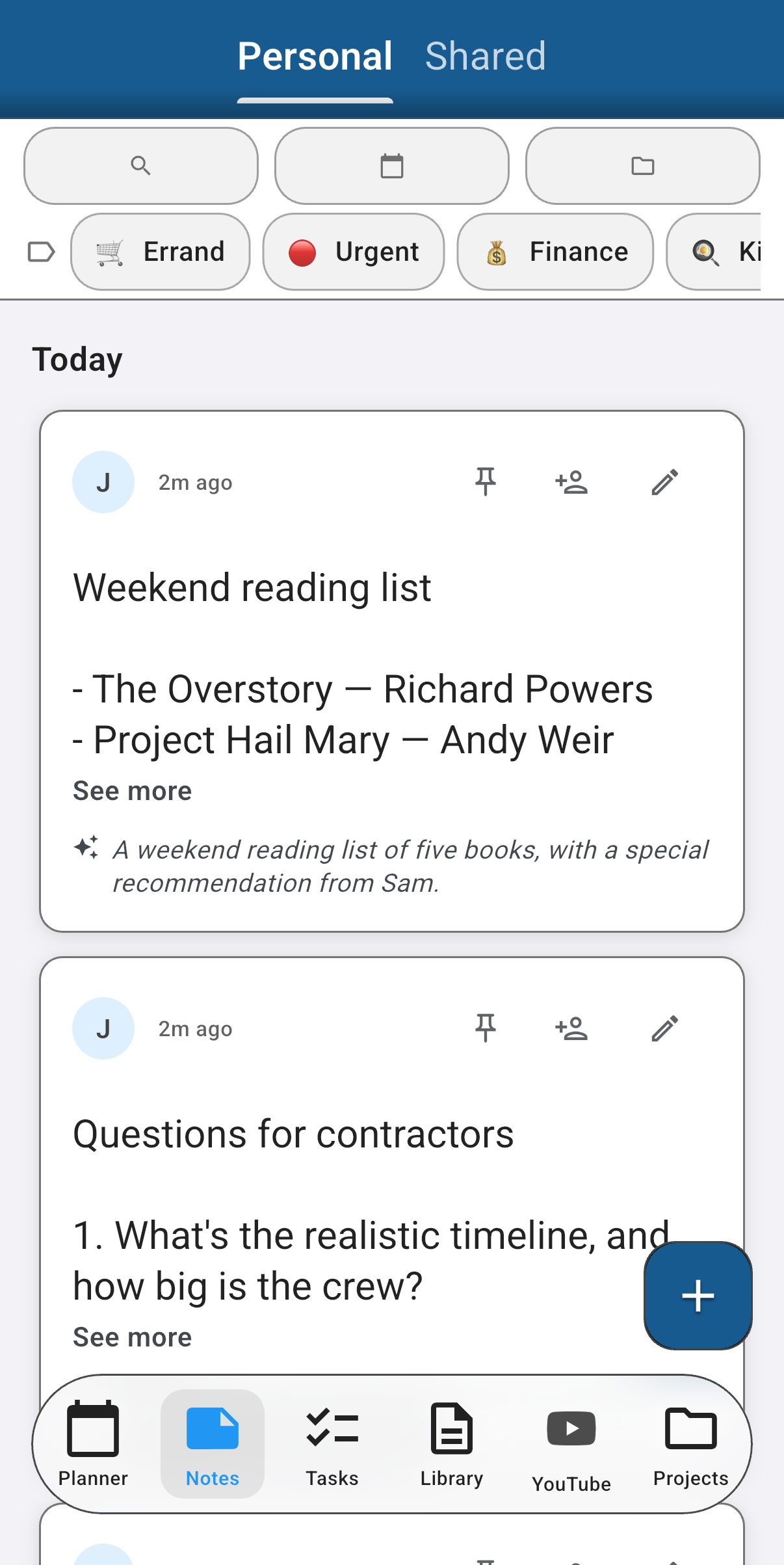
- Start typing. There's no title field — the title is derived from the first line of content (see below).
- Optional: attach to a project from the project picker at the top of the editor.
Personal notes (no project) are private to you. Project notes follow the project's sharing — collaborators see them with you.
Titles are derived, not stored
Focal Point doesn't ask you for a title separately — it takes the first non-empty line of your content. So if your note starts:
Sprint retro takeaways
- Demo went well
- Tighten the QA cycle
The title in list views is "Sprint retro takeaways" automatically.
If the first line is longer than ~80 characters, it's truncated with a trailing "..." for display. Empty notes show as "Untitled." Edit the first line any time to rename the note — nothing to update separately.
Plain text only (with simple lists)
Notes are intentionally minimalist: plain text only, plus bullet and numbered lists. No bold, italic, headings, code blocks, tables, or images inline. This is a deliberate design choice — the goal is fast capture and reliable rendering across every surface (mobile, desktop, web, PDF export, AI search).
If you paste rich text from another app, the formatting strips on paste. The text content survives; the styling doesn't.
For richer content, link to a document in the Library or attach an image to a task instead.
AI synopsis
Premium subscribers get an automatic AI synopsis on each note — a one-sentence summary the model produces shortly after the note is created or edited. The synopsis appears at the top of the note in detail view and in list-view rows. Notes that are too short (a handful of words) don't get a synopsis — there's nothing to summarize.
Synopsis generation typically completes within about a minute of the edit. If you don't see one, give it a moment, or refresh the list. The synopsis re-generates when you make substantive edits.
Free-tier accounts don't get the synopsis; the note still saves and renders normally.
Comments
Every note has a comment thread. Comments are plain-text, attributed to whoever wrote them, and show up in the activity log and on the note detail. Same comment rules as tasks — cross-references to other resources (a task key like QAS-2, another note's title) auto-link in the relevant surfaces.
On shared projects, collaborators can comment on notes you authored, and vice versa. The order is creation-time ascending.
Linking a note to a project
From the note detail, tap the project picker and choose any project you can write to. The note moves out of "Personal" and into that project's note list. Collaborators on the project immediately have access.
You can move a note between projects (or back to personal) any time by changing the picker. The note's comments and content come with it.
Searching
The search bar searches notes by title (the derived first line) and body content. Results show a snippet of the matched content so you can disambiguate.
If the AI synopsis is populated, it surfaces in search results too — useful when you remember the gist of a note but not the exact words. Scope by project via the filter pill if a search returns too many hits.
Deleting a note
Open the note and tap the three-dot menu → Delete. The action is confirmation-gated and moves the note (plus its comments) to Trash. You have 30 days to restore it from Settings → Trash; after that the nightly cleanup hard-deletes it.
If you delete the parent project instead, every note attached to it dies in the cascade automatically — see Delete a single project.
Common gotchas
- The first line is the title. If you want a different title, edit the first line. Empty notes are valid (they show as "Untitled") — useful as a quick-capture placeholder you'll fill in later.
- Pasted rich text loses formatting. Bold, headings, and inline images strip on paste. If you need styled content, use a document in the Library.
- AI synopsis is Premium-only and async. Don't refresh in a tight loop expecting it — give it a minute. Very short notes never get one.
- Notes don't have priorities or due dates. If a note actually needs a deadline, it's probably a task — consider whether you want to capture it that way.
Was this helpful? Email support@milehighsoftwaresolutions.com with feedback, corrections, or questions we should add here.