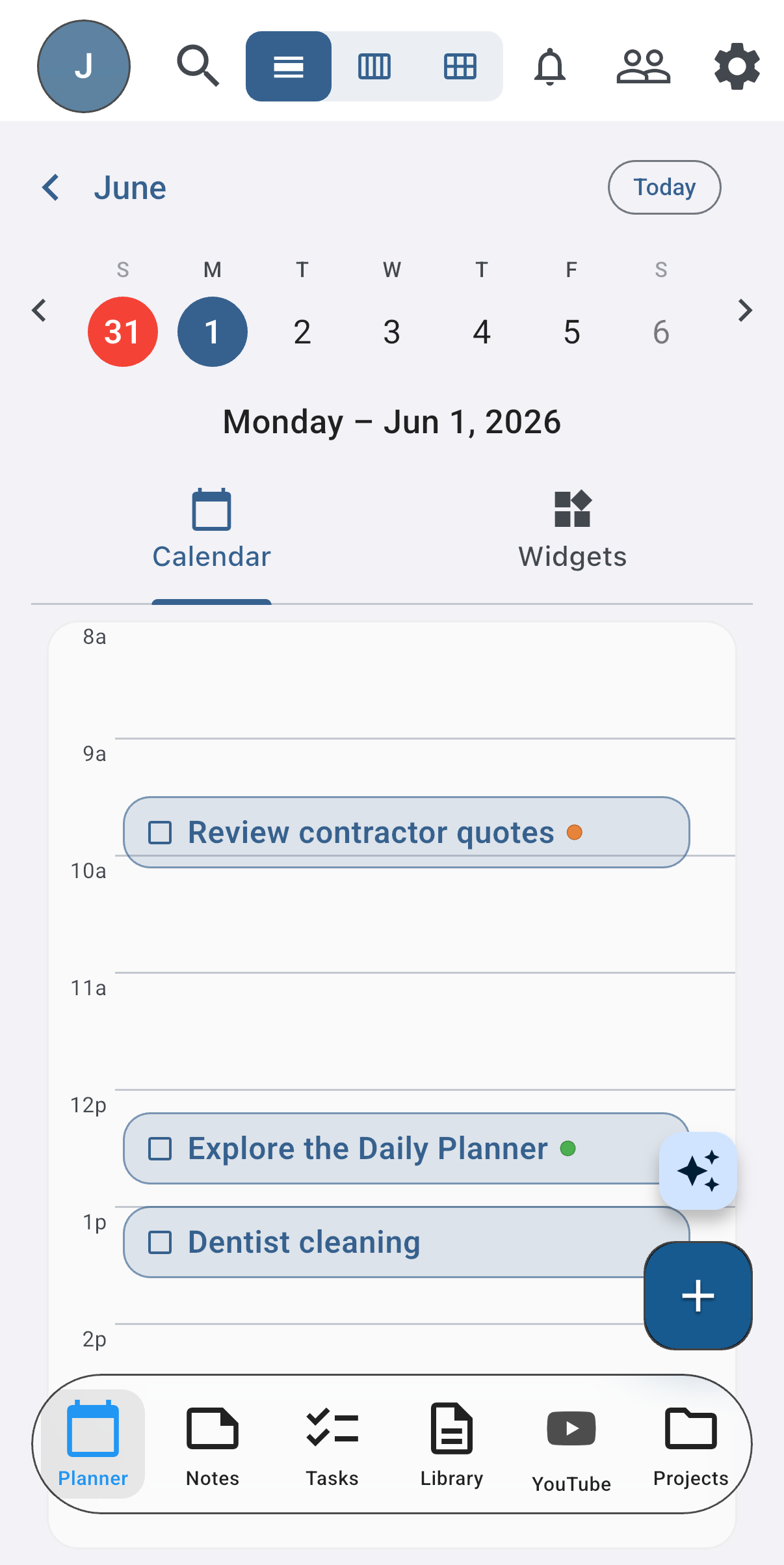
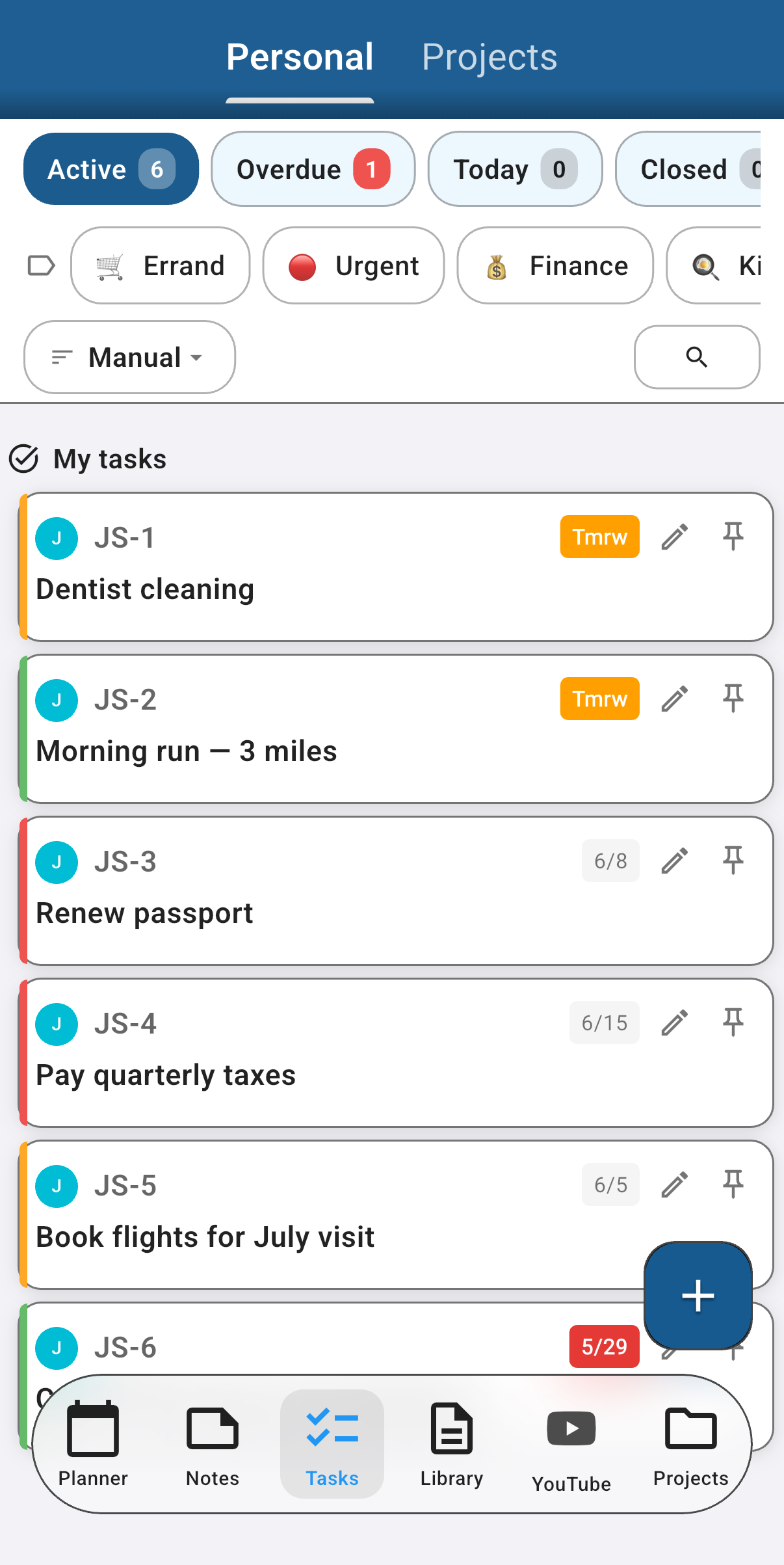
Tasks are the workhorse of Focal Point. They live either as personal tasks (just yours, no project) or attached to a project (your own or one you've been invited to). The Planner rolls everything into daily / weekly / monthly views; the Tasks tab gives you list and Kanban views per project. The Kanban board is available on iPad and Mac; on iPhone the Tasks tab uses the list view.
Creating a task
- From any Planner view, tap + Task. From the Tasks tab — your personal list or inside a project — tap the + add button.
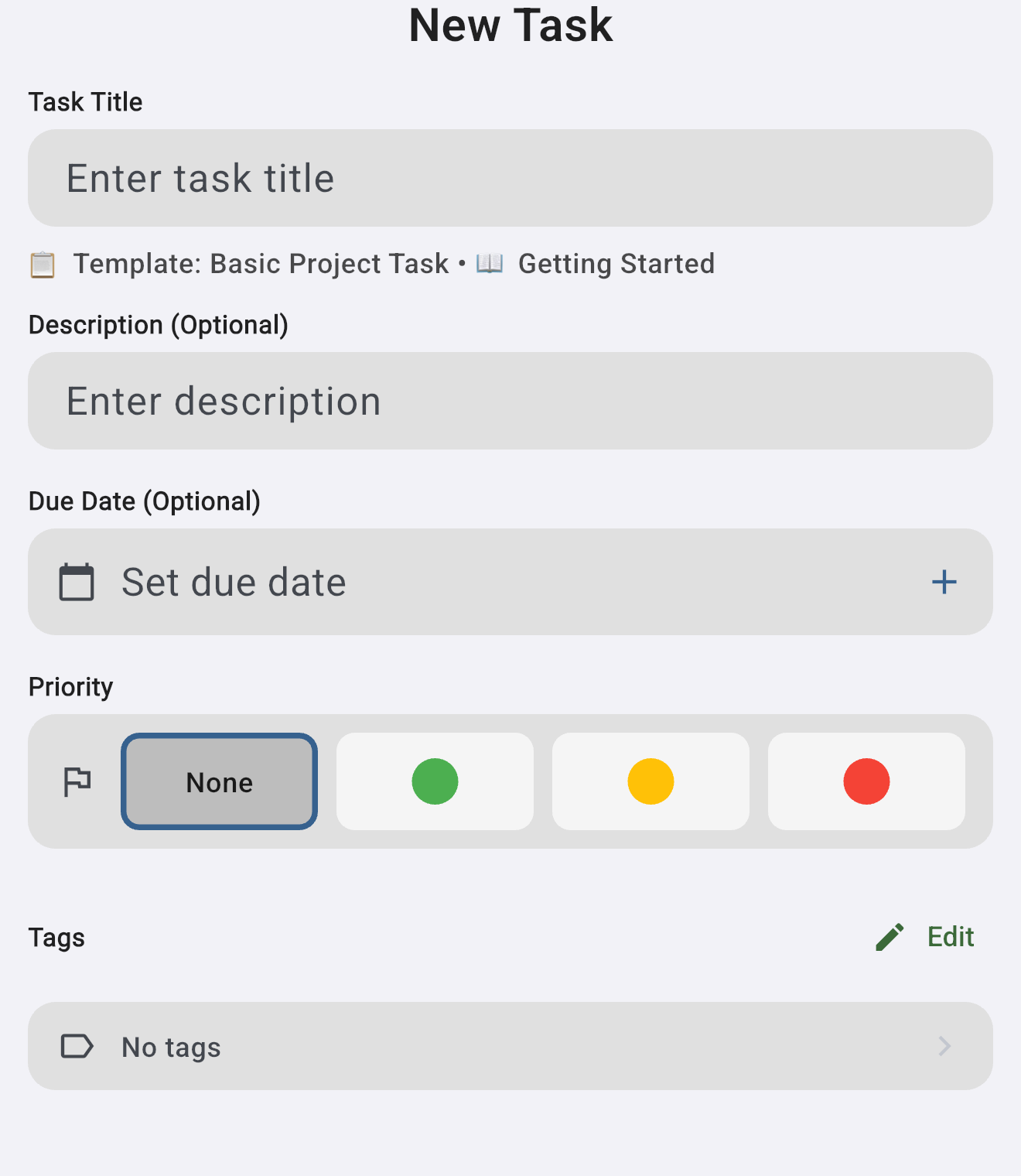
- Type a title. That's the only required field.
- Optional: description, due date, priority, project, tags.
Tasks created without a project go into your personal task list and are visible only to you. Tasks attached to a project follow that project's sharing — collaborators see them with you.
You can also create a task straight from the Pinned Tasks view: type a title and press Enter to create and pin it in one step, or tap + to open the full task form prefilled with what you typed.
Pinned tasks
Pinned Tasks is a personal scratchpad — a short, hand-arranged list of the tasks you want to keep front and center, pulled from anywhere in Focal Point. It's free, and your pins are private to you and sync across your devices: even on a shared project task, you see your own pins and each collaborator sees theirs.
Pinning and unpinning
Tap the pushpin icon on any task to pin it, and tap it again to unpin — a filled pushpin means pinned, an outline means not. The icon appears on task cards, the task detail screen, and the quick-add sheets, so you can pin from wherever you are. Pinning works for both personal and project tasks.
The Pinned Tasks view
Open it from the Pinned Tasks widget — in the Planner sidebar on iPad and Mac, or the Widgets tab on iPhone — which shows a pin icon and a live count of what you've pinned. The view has three parts:
- Quick-add row. Type a title and press Enter to create a task and pin it in one step, or tap + to open the full task form prefilled with what you typed. A personal / project toggle chooses where the new task lives.
- Active list. Your pinned, unfinished tasks, which you can drag to reorder. This order is personal to the Pinned view — it doesn't change how tasks are sorted in the main task list or on the Kanban board. Tap the pushpin on any row to unpin it.
- Completed today. Pinned tasks you finished today stay visible (struck through) so you can see what you've knocked out, each with a × to dismiss it. This section clears itself after midnight.
Task keys
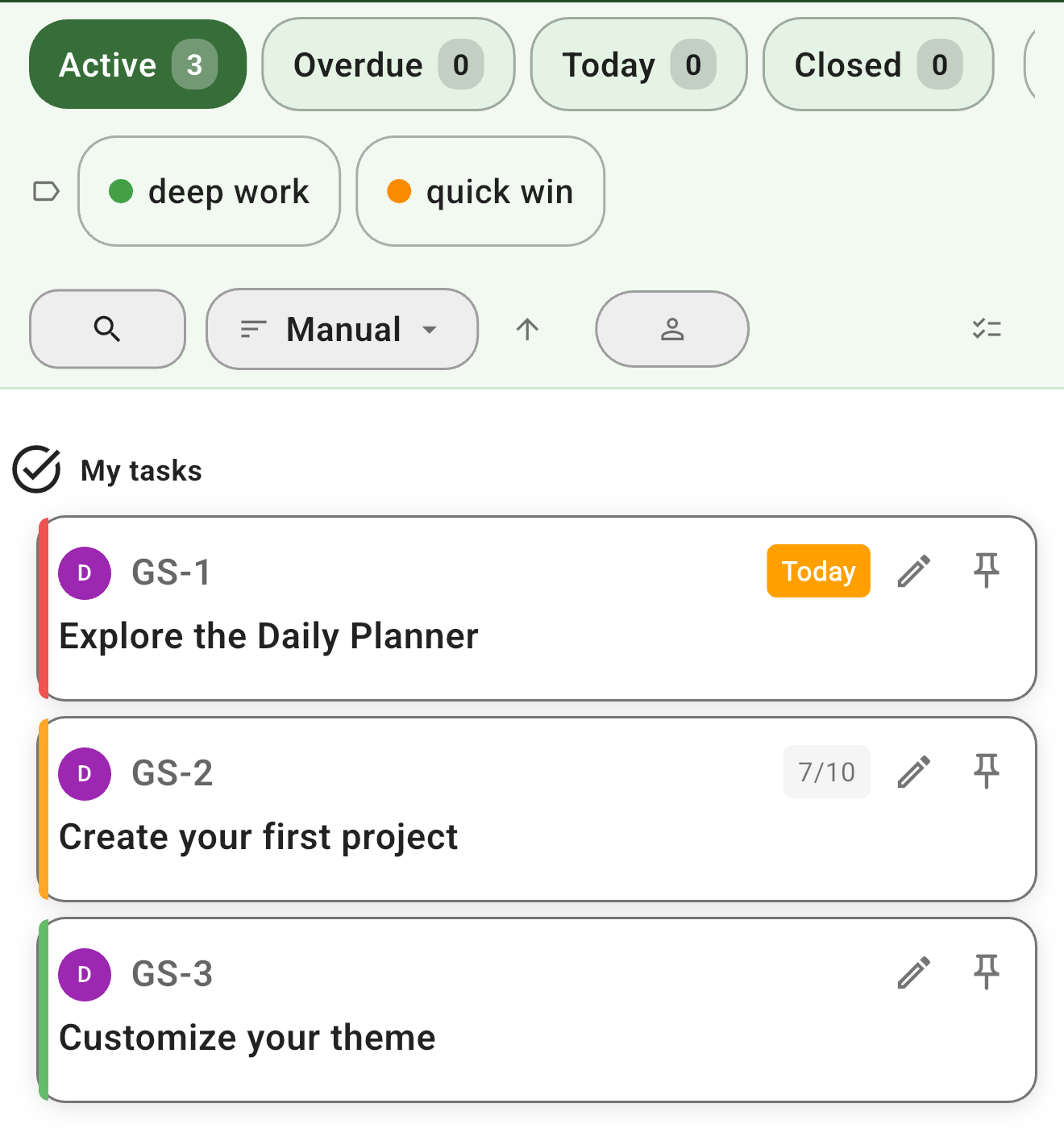
Every task in a project gets a stable, human-readable task key like SCB-29 or QAS-2:
- The prefix comes from the project's task prefix (set when the project is created — defaults to your initials, or the first 3 letters of the project name).
- The number is sequential within the project and is never reused — deleting a task doesn't free its number up for a later one (the counter only ever moves forward).
- Personal tasks get a key too, using your account's default prefix.
Task keys appear in comments, the activity log, mentions, and links — they're how to refer to a task without paste-bombing an internal id. Type "QAS-2" anywhere it'll auto-link in the relevant surfaces.
Priorities
Four levels: none, low, medium, high. Defaults to "none." Priority drives sort order in some Planner views and surfaces as a coloured chip on the task card.
Priority is independent from due date. A "high" task with no due date doesn't show up on today's view; a "none" task due tomorrow does. They're complementary, not redundant.
Due dates
Due dates can be a calendar day ("due Friday") or a specific time ("due Friday at 3 PM"):
- Calendar-day due dates render the same day in every timezone — a task due July 1 reads as July 1 whether you're in Denver, Reykjavik, or Tokyo.
- Time-of-day due dates are real wall-clock and respect timezones — a 3 PM deadline set while you're in Denver shows as 3 PM Denver if you're still there, and the local equivalent if you've travelled.
If you don't need the time, leave it off — calendar-day dates are clearer for everyone.
Tags
Tags are coloured labels you can attach to tasks for filtering and visual grouping. Two scopes:
- Global tags are yours alone, available across every project and every personal task. Use them for cross-cutting themes ("blocker", "deep-work", "errand").
- Project-scoped tags live inside a single project and are visible to that project's members. Use them for project-specific categories ("frontend", "blocker-this-sprint").
Create a tag from the tag picker on any task. Tags can be assigned a colour at creation — the picker shows colour swatches.
A task can have any number of tags, mixed scope (one global + two project tags is fine).
Task relations
Tasks can reference one another through typed relations:
- Blocks — "this task can't proceed until that one is done." The other end shows the inverse, Blocked by, automatically.
- Blocked by — same relation viewed from the other side. Setting one creates the other; clearing one clears the other.
- Related — symmetric, light-touch link. Useful for "see also" without implying a dependency.
Focal Point refuses to create a relation cycle (A blocks B, B blocks A) — it returns a clear error pointing at the offending chain so you can untangle it. Relations are scoped to tasks you have access to; you can't link to tasks in projects you're not a member of.
Comments and mentions
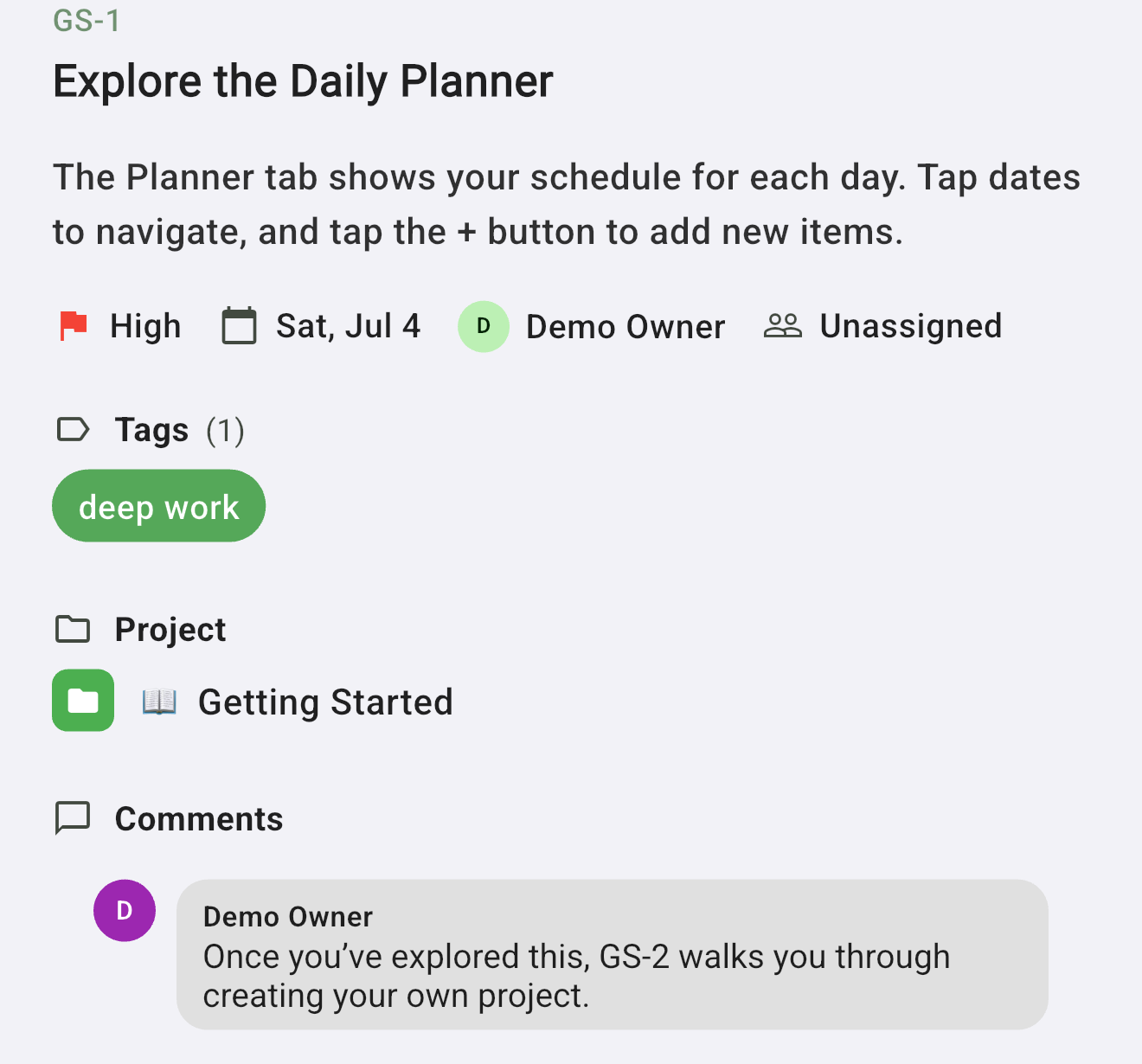
Every task has a comment thread. Comments are plain-text, attributed to whoever wrote them, and show up in the activity log + on the task card. When you reference another task by its key (e.g., "see QAS-2") in a comment, the key auto-links.
On shared projects, comments by collaborators show their avatar and name. The order is creation-time ascending — oldest at the top.
Activity & history
Every task keeps an activity timeline — a running log of what happened to it and when. Open a task and scroll to the Activity section to see it. The log captures the kinds of changes that matter for a shared workflow:
- Created — when the task was made.
- Field changes — edits to the due date, priority, title, description, tags, and other fields, with the before/after where it's useful.
- Completed — when it was checked off (and re-opened, if it was).
- Assignment — who it was assigned to, and any re-assignment.
- Kanban moves — moving the task between columns on the board.
- Trash & restore — when it was deleted to Trash and when it was brought back.
On a shared project each entry is attributed to the person who made the change, so the history reads as "who did what, when" — useful for catching up on a task other people have been working.
Sorting and filtering in the Planner
Open the Planner view (daily / weekly / monthly) or the Tasks tab and choose a sort:
- Manual (default) — the order you've arranged with drag-and-drop. New tasks land at the bottom.
- Due date — ascending, tasks with no due date land last.
- Recently updated — most recently edited first. Useful for "what's been moving" surveys.
Filters orthogonal to sort: Open (default), Completed, or All. Plus the per-project filter pills along the top.
Assigning tasks to other people
If a task is in a shared project, you can assign it to any project member from the task detail. The assignee gets a notification (per their notification preferences). Re-assignment is fine; the activity log captures the change.
Personal tasks (not in a project) can't be assigned — there's no one else to assign them to.
Searching
The search bar at the top of any planner view searches tasks, notes, and projects. Tasks come back ranked by title and description match. Each result row shows the task key, project name, and tags so you can disambiguate without opening the task.
You can scope search by project via the filter pill below the search bar — useful when one project has many similar-sounding tasks.
That instant search is keyword-based — it matches the words you type (a task key like QAS-2 jumps straight to that task). Premium adds AI semantic search, which ranks by meaning rather than exact words — so "somewhere to stay in Rome" can surface a note titled "Trastevere apartment" even with no shared keywords. Reach for keyword search when you know roughly what it's called, and semantic search when you only remember the gist.
Deleting a task
Open the task detail and tap the three-dot menu → Delete. The action is confirmation-gated and moves the task (plus its comments) to Trash. You have 30 days to restore it from Settings → Trash; after that the nightly cleanup hard-deletes it.
If you delete the parent project instead, every task inside it dies in the cascade automatically — you don't need to delete tasks one by one first. See Delete a single project.
Common gotchas
- Deleting a tag cleans up its tasks for you. When you delete a tag (global or project-scoped), Focal Point automatically removes it from every task that used it — no orphaned or blank chips, and no need to edit each task by hand. The cleanup runs in the background, so on rare occasions a just-deleted tag might linger on a task for a second or two before it disappears.
- Task relations across projects are allowed as long as you have access to both. If a collaborator later loses access to one side, the relation stays on the doc but you'll see "(no access)" where the other task's title would render.
Was this helpful? Email support@milehighsoftwaresolutions.com with feedback, corrections, or questions we should add here.