Welcome to Focal Point. This guide walks you through creating your account, setting up your first project, and capturing your first task or note. The whole thing takes about five minutes.
1. Create your account
You can sign in three ways:
- Sign in with Apple — fastest on iPhone, iPad, or Mac. Apple shares only what you choose.
- Sign in with Google — useful if you plan to connect Google Calendar later.
- Email and password — works on any platform.
Whichever you pick, the same account works across iPhone, iPad, and Mac. Your data syncs automatically once you're signed in.
2. Find your way around
The home screen lands on your Planner view, showing your tasks, events, and reminders for the current day. Widgets offer additional information at a glance — Weather, upcoming Reminders, Tasks, Notes, Events, and the latest videos from your favorite YouTube channels — all fully customizable from the settings screen. From there, the bottom navigation (or sidebar on Mac) lets you jump to:
- Projects — group related tasks, notes, documents, and links into a shared workspace.
- Tasks — every task across every project, with filters by date, status, or assignee.
- Notes — quick capture and attachments, with per-note sharing for collaborators you've friended.
- Calendar — your tasks, events, and trips on a single calendar surface.
- Library — all of your documents and your favorite bookmark links in one place.
- YouTube — the latest videos from your favorite YouTube channels. Not into YouTube? No worries — you can hide this tab via settings.
3. Create your first project
Tap Projects → New Project. You'll be asked to pick one of two types:
- Project — the general-purpose container. Use this for anything that isn't travel. On the personal front this could be a home renovation, a class you're taking, or an event you're planning. If you're into YouTube you can pull in your favorite channels and relate specific videos to your project for future reference. If you're a consultant and need to balance work with home life you can leverage the more robust and collaborative capabilities within projects — like customizable task management with kanban boards (currently Mac only), a fully functional document management system leveraging AI for search, sticky notes for brainstorming sessions, and events that integrate with your calendar.
- Trip (Premium only) — purpose-built for travel. Trips can be as simple or as complex as you need them to be. Add stops on a map and use AI to help you build out your itinerary — AI can help you arrange your stops in the most efficient manner to maximize your time spent seeing the things you want to see along the way. Leverage the built-in weather by route/time feature to help you determine the best time to start your day and see what you can expect along the way in terms of temperature, precip, and wind at any given point in your journey. Already have an itinerary started but just want to get it into Focal Point? No problem — with Focal Point's advanced import feature you can import any itinerary quickly and easily to hit the ground running. Managing expenses is a breeze: simply scan or import your receipts to keep track of who owes who throughout the trip. Dealing with multiple currencies? No problem either — let Focal Point figure things out in whatever currency you choose. If you're planning a vacation, a road trip, or any multi-stop journey, Focal Point has you covered.
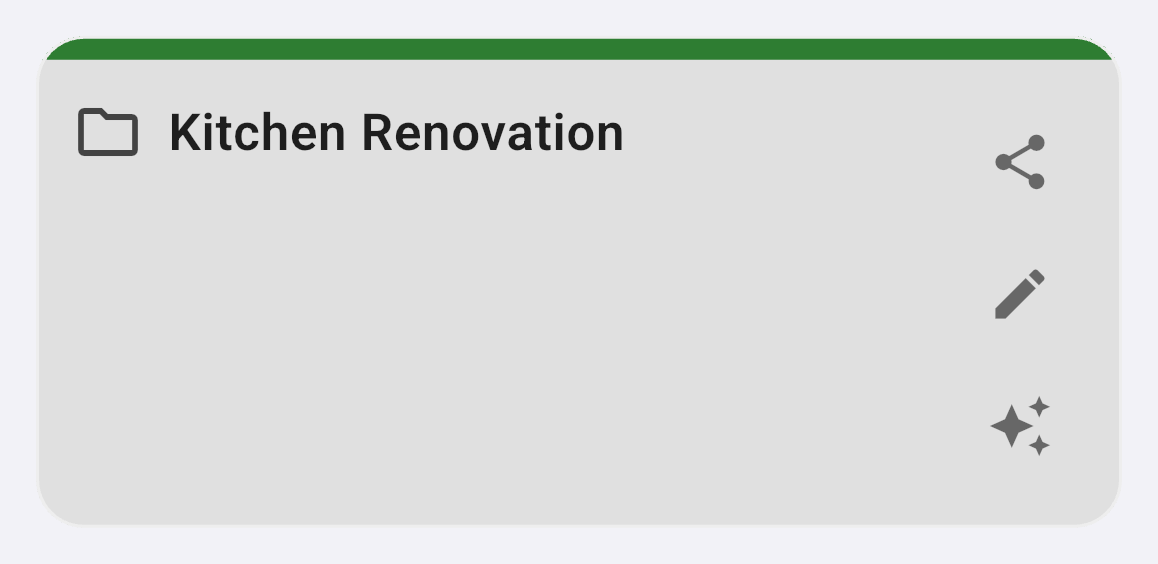
If you're not sure, start with a regular Project — you can always rename, recolor, or delete it later. To invite collaborators, add them as a friend first, then tap the share icon on the project's card in your Projects list (the top icon, shown below) and select them from your friends list.
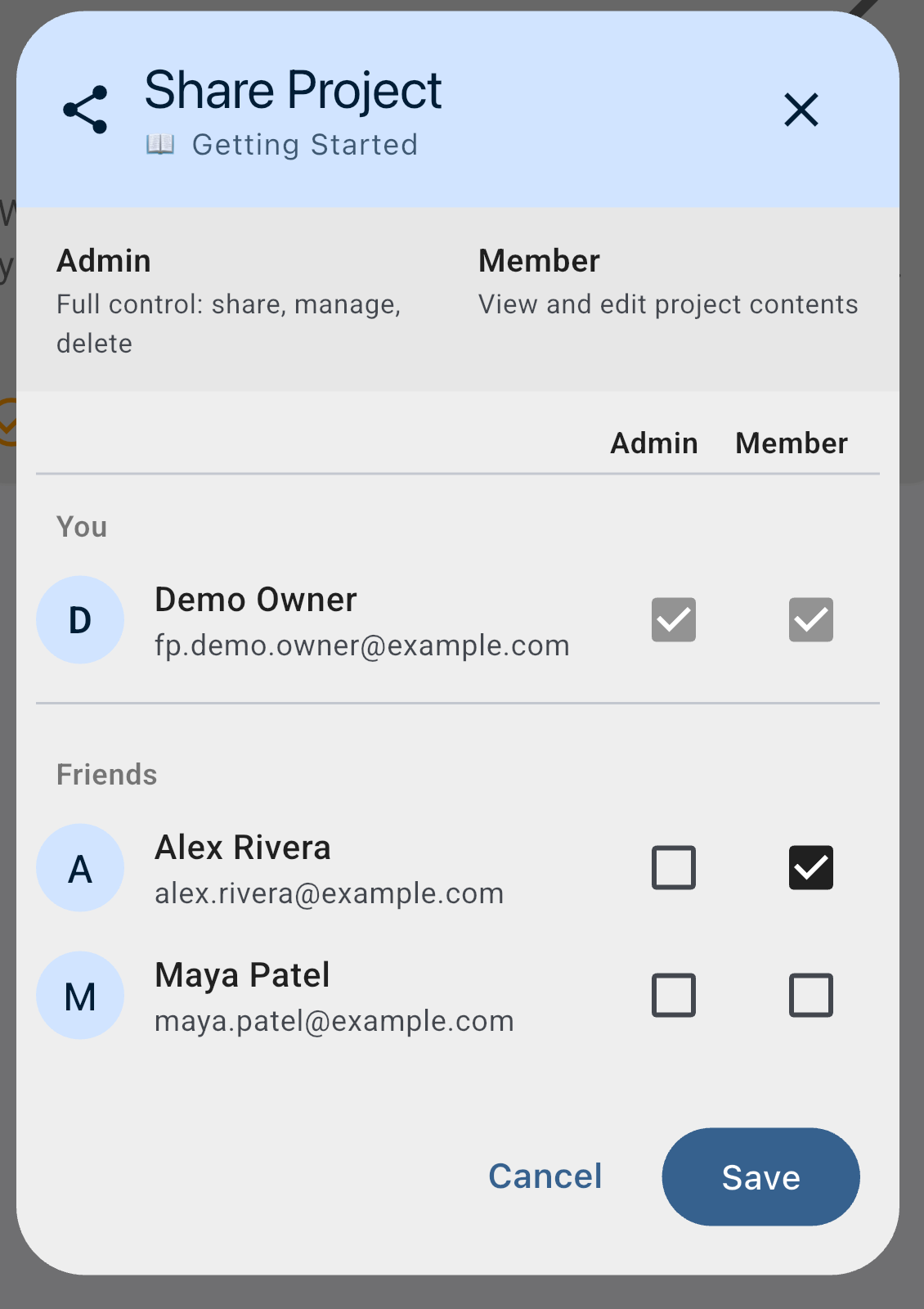
In the Share Project dialog, each friend appears with their name and email. Tick Member (view and edit) or Admin (full control) next to a friend, then tap Save to send the invitation.
4. Add your first task
You can create a task from several places — the Planner, the Tasks tab, or from inside a project — whichever fits how you're thinking. Tasks created from inside a project belong to that project; tasks created from the Planner or Tasks tab can either be tied to a project or kept as standalone personal to-dos that aren't attached to anything else.
At minimum a task needs a title. Beyond that, tasks are as simple or as detailed as you want them to be — thanks to the templates feature you can save your favorite types (with or without due-dates, custom tags, custom fields, checklists, reminders, documents and attachments) and reuse them with a tap. Tasks also support reminders that show as device notifications before the due date. Tasks can be delegated to others or kept to yourself.
5. Capture your first note
Notes are for free-form thinking — meeting minutes, recipes, brainstorms, journal entries. From the Notes tab tap + and start writing. Notes can stand alone or live inside a project.
You can keep a note personal, or share it with other Focal Point members you've friended — useful for things like a shared shopping list, a household to-do board, or notes you're collaborating on with a coworker. Sharing controls live on each note individually, so personal and shared notes coexist in the same place.
6. Send content into Focal Point from anywhere
You don't have to be inside the app to capture something. Focal Point hooks into the share menus on each platform, so you can pull content in from wherever you happen to be:
- iOS & iPadOS share sheet — from Safari, Mail, Photos, Files, Messages, or any other app, tap Share → Focal Point. You'll be asked where it should land (a project, a note, or a task) and what kind of item to create.
- Android share intent — same idea: tap the share button in any app and pick Focal Point as the destination.
- Mac drag-and-drop — drag files, images, or PDFs straight from Finder onto a project, task, or note to attach them.
This is the fastest way to clip a recipe you found, file a receipt photo, or save a web article for later without breaking your current flow.
7. Connect what you already use (optional)
If you want, head to Settings → Integrations to:
- Connect Google Calendar so events appear in Focal Point's calendar view.
- Add your favorite YouTube channels to surface their latest videos in the Planner widget, the YouTube tab, and inside projects. Not into YouTube? No worries — you can hide this tab via settings.
- Enable smart reminders for sports teams you follow (Premium).
What's next
- See what a Premium subscription will offer you and compare to our free version.
- Browse the FAQ for quick answers to common questions.
- Learn more about Focal Point's full document management capabilities.
Was this helpful? Email support@milehighsoftwaresolutions.com with feedback, corrections, or questions we should add here.